
The brief
The ER Knob is a haptic knob for cars without CarPlay, made by Engineers Republic, the hardware company that grew out of KSE Labs. It sits beside the phone on the dash, and a motor under the cap makes its clicks, so the feel can change. We built the knob's firmware and its app; the firmware has its own case study, and this one is about the app.
The knob already works without an app: to the phone it's a Bluetooth keyboard with only media keys. So the app had to earn its place, and the brief set out where:
- Shape the feel: click strength, detent count, spring, stops and press actions, felt on the knob while you change them.
- Do what the phone can't: show what's playing, scrub through a track with the knob, and keep a volume dial matched to the phone's volume.
- Look after the knob: firmware updates, calibration and diagnostics, without a laptop.
- Never get in the way: if the app is closed, crashes or loses the link, the knob keeps controlling the music.
One codebase, three kinds of knob
The app is built in Flutter, one codebase for iPhone and Android, with Riverpod for state. Everything that touches the knob goes through one connection interface, and three things implement it: the real knob over Bluetooth Low Energy, a simulated knob for the app's demo mode, and fakes for tests. The screens don't know which one they're talking to.
Under the connection sits a protocol layer written from the same specification as the firmware. The app's tests and the firmware's tests check the same byte-level fixtures, so when one side changes a message, the other side's tests fail before a user ever sees the mismatch.
Where Flutter can't reach, the app has small native bridges: Swift on iOS to read the system volume, and Kotlin on Android for media sessions, the companion-device service and the phone's input devices. Each bridge is a thin channel with a typed Dart wrapper, and the rest of the app only sees the wrapper.
Tuning a feel you can touch
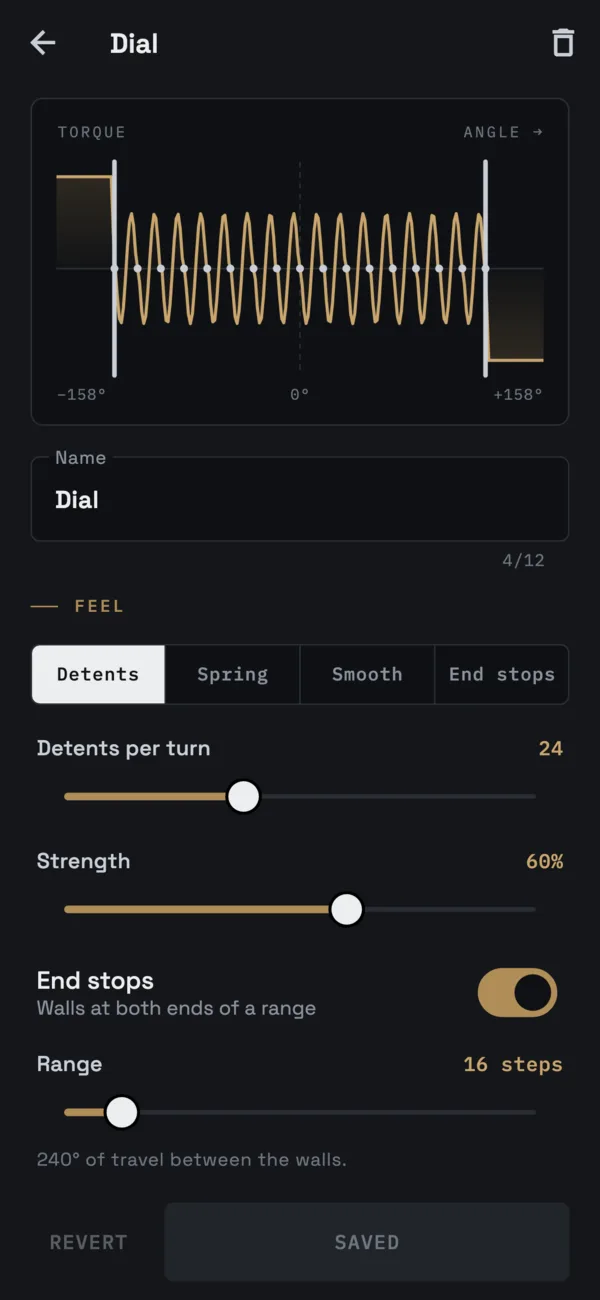
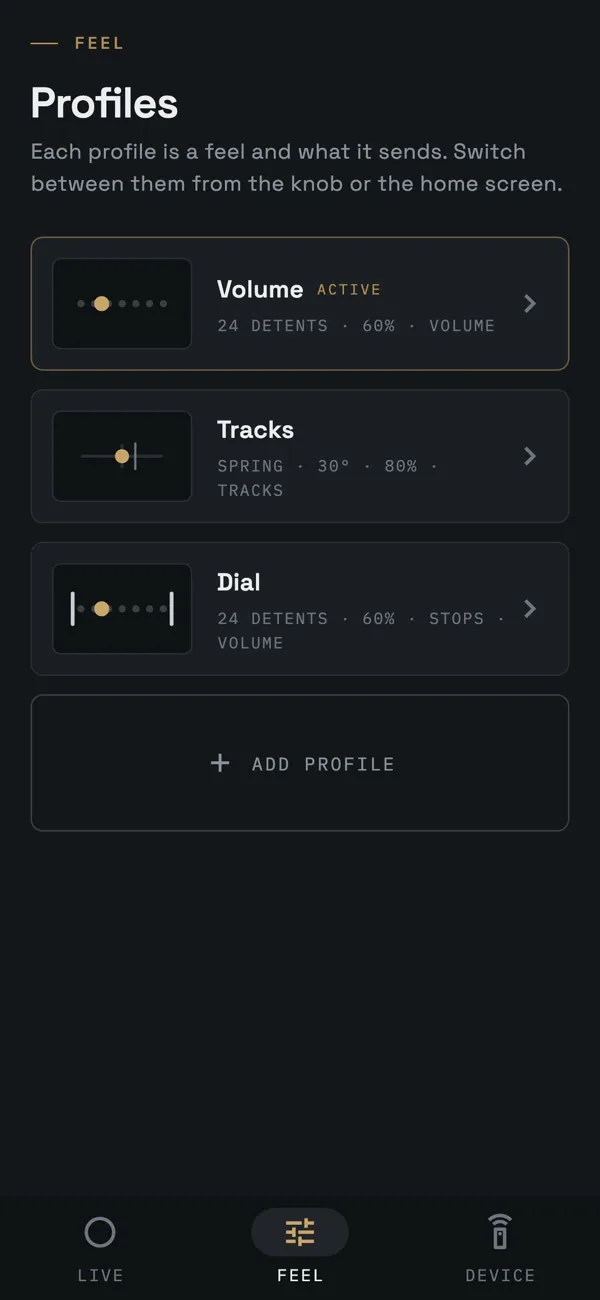
The profile editor is the heart of the app. Every slider change streams to the knob as a preview over a separate Bluetooth channel, so you feel the new click strength while your thumb is still on the slider. Save writes the profile to the knob, split across packets and acknowledged; leaving without saving reverts the knob to what it had. The torque curve at the top is drawn from the same feel model the firmware runs, so the picture and the feel always agree.
Because the profiles are saved on the knob, the knob keeps its feel when the app isn't running, on any phone it's paired with.
A knob you can try without the knob
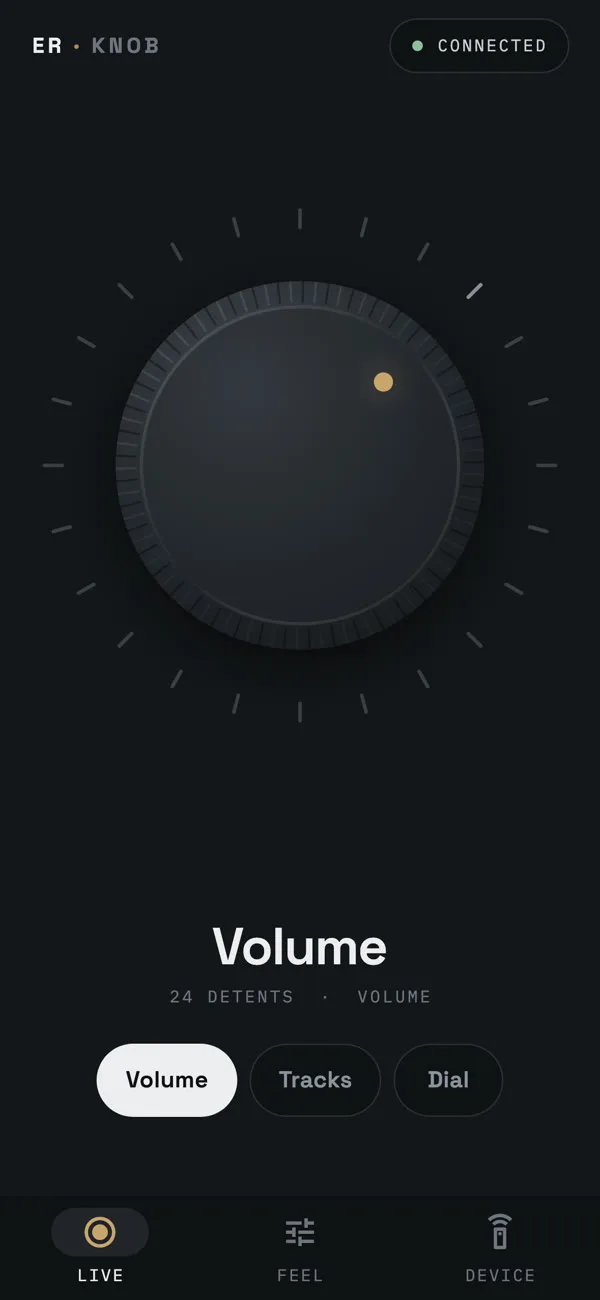
Not everyone opening the app has a knob yet. Demo mode runs a physics model of the knob, with inertia, damping, the profile's torque and a finger that can hold it, and it reports the same events the real firmware would. The rest of the app can't tell the difference, which also makes it a useful test bench. The same model, ported to JavaScript, runs the interactive demo on the Knob's page.
Two platforms, two sets of rules
iOS and Android give a companion app very different powers, and the app makes the most of each rather than settling for what both allow.
On iPhone, an app can read the system volume, in the same sixteen steps as the volume buttons, but only while it's open. That's enough for the volume dial while the app is on screen, and the knob's media keys do everything else.
On Android, the app can do much more, and each piece needed its own work:
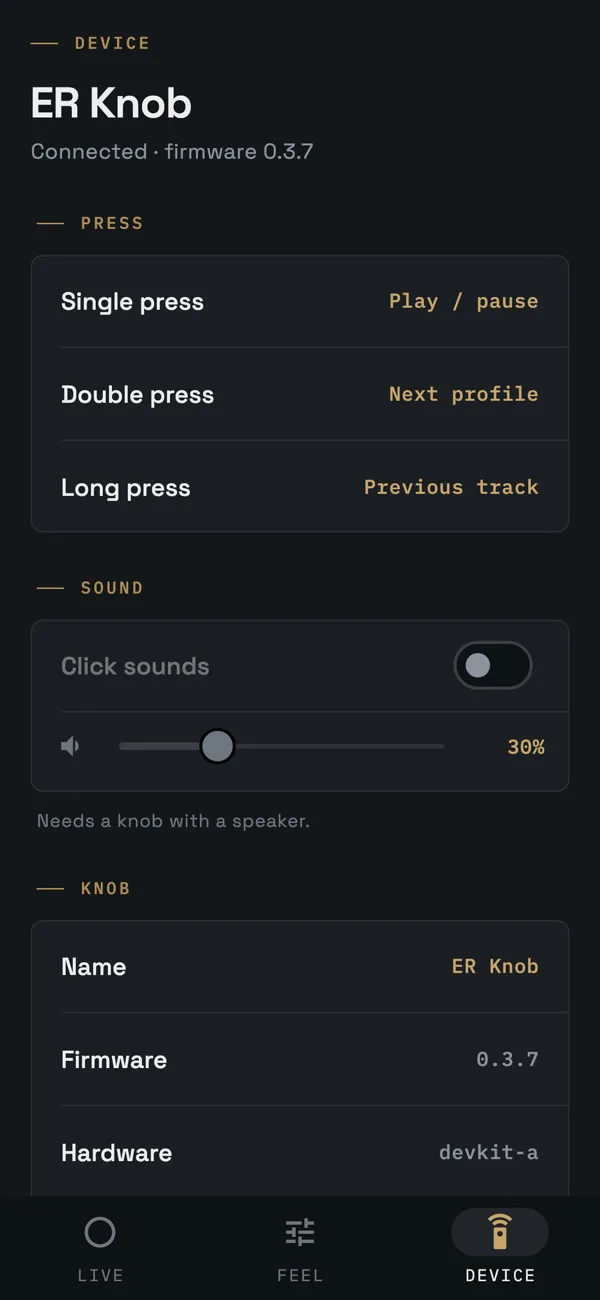
- Media keys: some Android phones pair with the knob but don't connect its keyboard side until you switch on "Input device" in Bluetooth settings. The app watches whether Android has the knob attached as an input device, and if it hasn't, it explains the fix and opens the right settings screen.
- Now playing and scrubbing: with notification access, the app reads the phone's media sessions: what's playing, in which app, and where playback is. A scrub profile then turns each click of the knob into a jump through the track.
- Hands-free: on Android 13 and later, the app registers as the knob's companion device, so Android wakes it when the knob powers up with the car. A foreground service keeps the link up while the phone sits locked in its mount.
The hard part: following the phone's volume
The knob's motor can turn the knob by itself. So with a volume dial, which has stops at silent and full, the knob can always point at the phone's real volume: press the phone's volume buttons and the knob turns to match. It sounds simple. It's the hardest thing in the app.
First, the dial has to fit the phone. An iPhone has 16 volume steps, and Android phones often have 15, so the app shapes the dial to the phone: stops at both ends, one click per volume step, with the range rounded to an even number so the stops sit either side of centre. Following is its own setting on each profile, so turning it off leaves the feel exactly as it was.
Then there's the loop. Turning the knob sends volume keys, which change the phone's volume, which the app sees. If the app answered every volume change by turning the knob, it would fight the hand on it. On a weak Bluetooth link it's worse: keys from a turn can still be landing a second later, so matching too early turns the knob back, and then the late keys move the volume on again.
The app tells the two apart by timing. After the knob is turned, it waits until the hand has been off for a moment and the phone's volume has stopped changing, and only then matches the knob to it. A volume change with nobody touching the knob, from the phone's buttons, Control Centre or another app, is matched straight away. The windows are short enough that the knob feels responsive, and long enough that it never argues with your hand. The Device screen shows the Bluetooth signal strength, because so much of this depends on the link.
Staying in charge without getting in the way
Some features, like scrubbing, only make sense while the app is running. The app holds a lease on the knob for them and renews it every two seconds. If the app is closed, suspended or loses the link, the lease runs out and the knob falls back to plain media keys on its own. Nothing the app does can leave the knob stuck in a mode nobody is listening to.
Firmware updates from the phone
Updating the knob needs nothing but the phone. You pick a firmware file from Files, and before anything is sent the app checks that it's really firmware for this knob: it reads the hardware and version tag built into the image and checks the image's integrity. Then it sends the ESP32 image in windows the knob acknowledges, with progress on screen. The knob checks the checksum again before booting the new version, and rolls back if it doesn't come up healthy.
Screenshots that can't go stale
The screenshots on this page weren't taken on a phone. A test renders the app's real screens against a fake connected knob, at iPhone size, with the app's own fonts. When a screen changes, the images for the website and for case studies like this one are regenerated from the code, so they never show an app that no longer exists.
Where it stands
The app runs on iPhone and Android and is in daily use with the prototype knob; it isn't in the app stores yet. The knob itself is waiting on power from the car and radio approval before it can be sold, and Engineers Republic is taking sign-ups on the ER Knob waitlist. For the device side of the build, read how we built the knob's motor control and Bluetooth firmware.
Need an app for your device?
A companion app is where a hardware product meets its users, and it's only as good as its link to the device. We build the firmware and the app together, in Flutter for iPhone and Android, so the two are designed as one system rather than glued together at the end.
Talk Through Your Build